50 Laser Cut Christmas Ideas You Can Make This Year (With Files)
Not sure what to cut for Christmas? Here are 50 laser cut ideas, from quick ornaments to lamps and advent calendars, with a download button under each one.
Read more →
Beginners · 27 Oct 2026 · 4 min read
New to laser cutting? Learn what SVG and DXF files are, how to import them, check the size and set up cut and engrave lines before you press start.
Some links in this post are affiliate links. Details
You downloaded a nice Christmas file. Now what? If you are new to laser cutting, opening a design for the first time can feel confusing. The good news is that the steps are almost always the same, no matter what software you use.
SVG is a vector file. Instead of tiny dots like a photo, it stores lines and shapes as math. That is why you can make it bigger or smaller without it getting blurry. Lasers love vectors because the beam can follow the lines exactly.
You will often see these file types:
The product page tells you which formats are included. If your software does not like SVG, try DXF.
You do not need all of these, only one that works with your laser.
Most files come in a ZIP. Unzip it first, then open the folder. You will often find several formats and sometimes a PDF with instructions. Read it. It can save you a lot of trouble.
In your software, use "Import" or "Open" and choose the SVG. If the design is made of several parts, you will see all of them on the screen.
This is the step people skip, and then they cut a tiny ornament that should have been big. Look at the width and height. Compare them to what the product page says. If the size is wrong, scale the design while locking the proportions, so it does not get squished.
Many files with slots and tabs are made for one thickness. If your plywood is thicker or thinner, the parts may not fit well. Measure your material and compare it with the product page. Some files let you change the slot size, some do not.
Most laser software sorts lines by color or by layer. For example, a red line might mean "cut through" and a black fill might mean "engrave on the surface". Different programs use different rules, so check how yours works.
The order matters too. Usually you want to engrave first and cut last, so the piece does not move before the details are done.
Always cut a small test piece, or cut the design on cardboard first. It shows if the size, the fit and the settings are right, and it costs almost nothing.
A simple ornament is the best first project. Here are some to try.
![[SET] Christmas Laser Cut Ornaments laser cut file](https://cdn.creativefabrica.com/2026/10/27/SET-Christmas-Laser-Cut-Ornaments-Laser-Cutting-161271052-1-580x441.jpg "[SET] Christmas Laser Cut Ornaments")
[SET] Christmas Laser Cut Ornaments is a laser cut design for the Christmas tree. Ornaments are the fastest way to get started, because the pieces are small and one sheet of material gives you plenty of them.
Download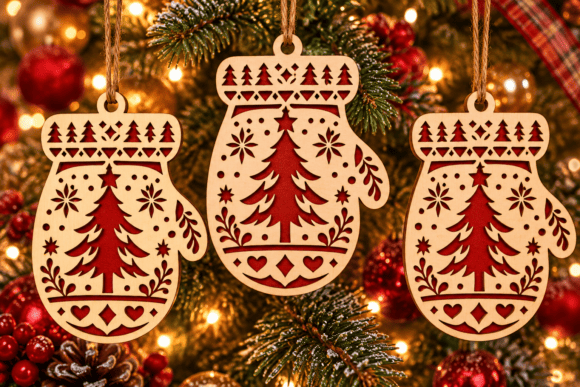
Scandinavian Christmas Tree Mitten Laser is a laser cut design for the Christmas tree. Ornaments are the fastest way to get started, because the pieces are small and one sheet of material gives you plenty of them.
Download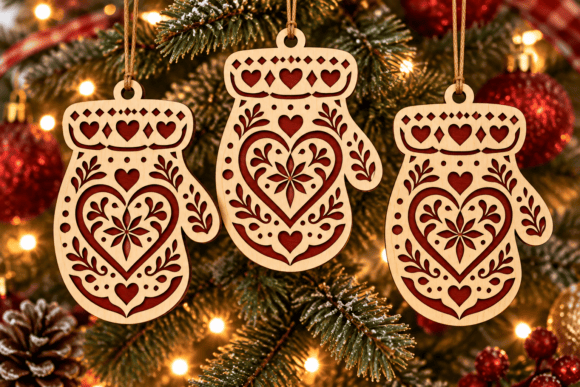
Scandinavian Christmas Mitten Laser Cut is a laser cut design for the Christmas tree. Ornaments are the fastest way to get started, because the pieces are small and one sheet of material gives you plenty of them.
Download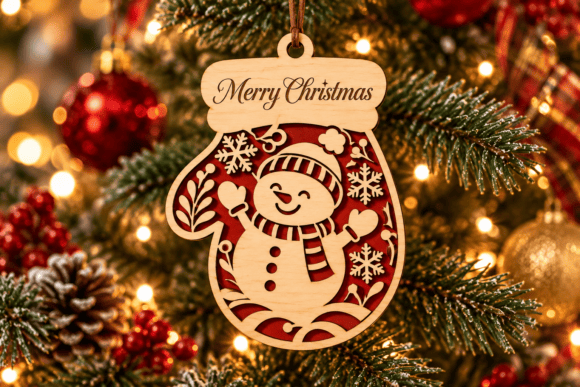
Merry Christmas Snowman Mitten Laser Cut is a laser cut design for the Christmas tree. Ornaments are the fastest way to get started, because the pieces are small and one sheet of material gives you plenty of them.
DownloadAnd if you are still choosing a material, read our guide to the best materials for laser cut ornaments.
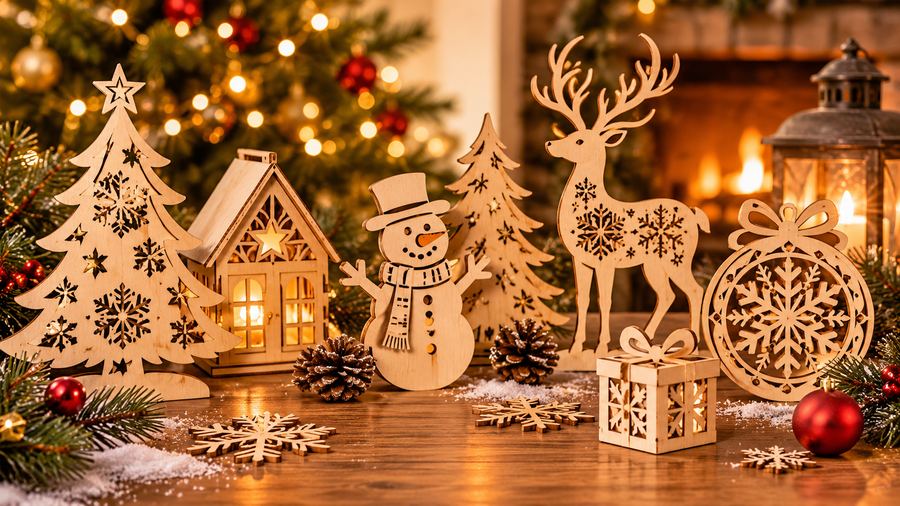
Not sure what to cut for Christmas? Here are 50 laser cut ideas, from quick ornaments to lamps and advent calendars, with a download button under each one.
Read more →
Plywood, MDF, acrylic or cardboard? A simple guide to choosing the right material for laser cut Christmas ornaments, with pros, cons and safety notes.
Read more →
A beginner-friendly guide to making a reusable wooden advent calendar with a laser cutter: planning, cutting, gluing, numbering and filling it.
Read more →